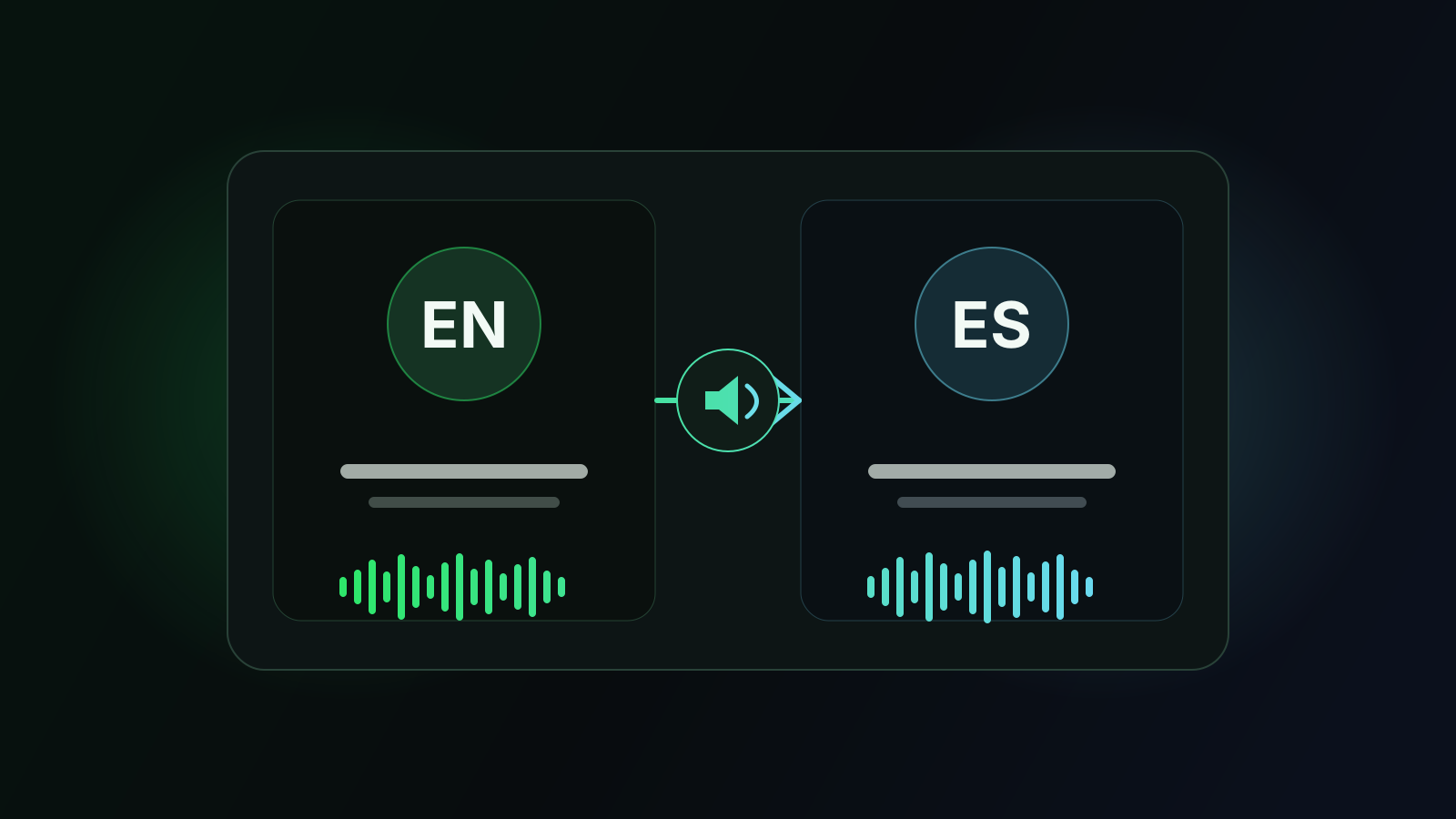
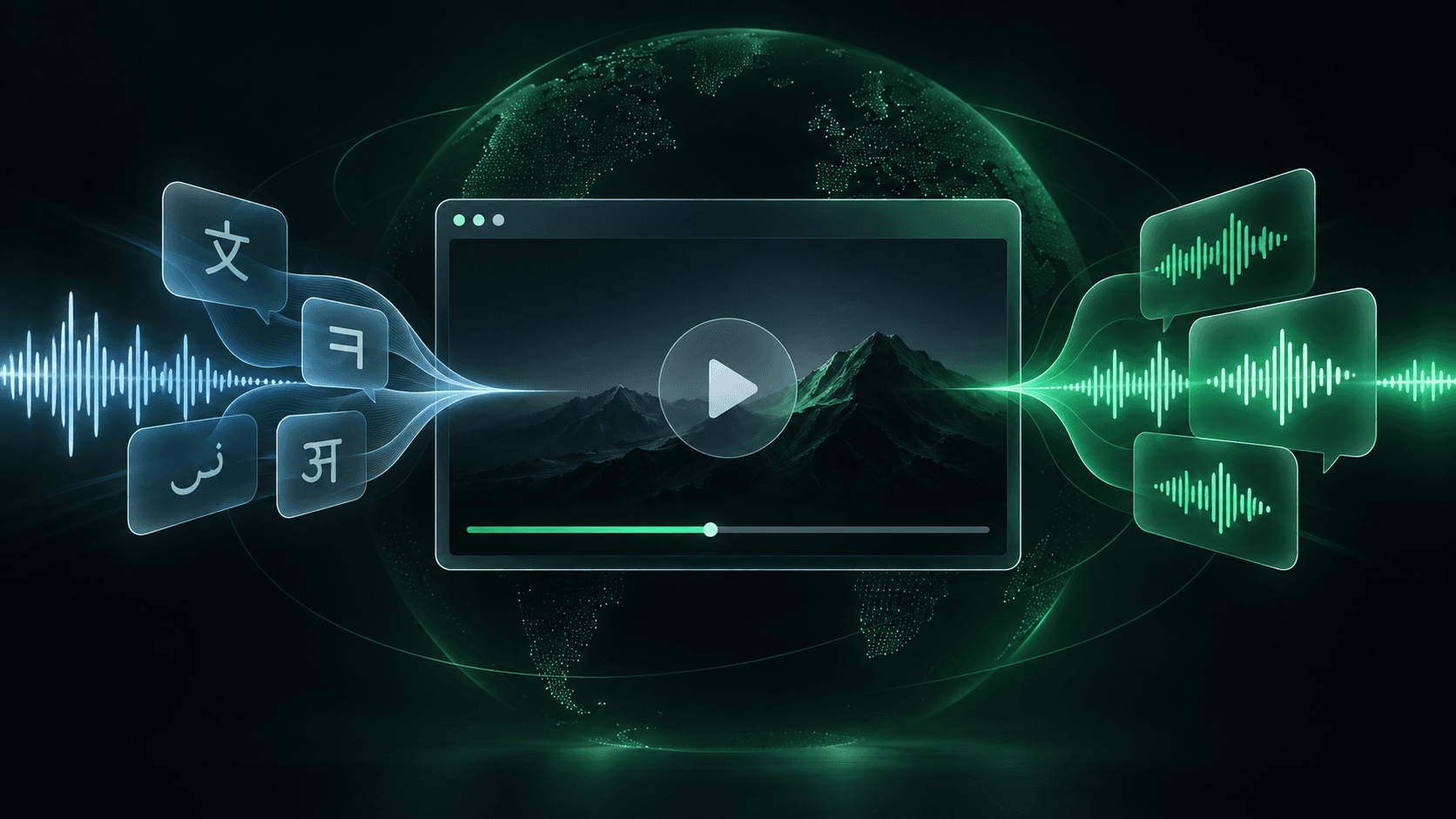
How to Choose a Real-Time Video Dubbing Chrome Extension
A practical, neutral guide to choosing between existing audio tracks, translated captions, local voices and cloud dubbing in Chrome.

Leonel Ngoya
Founder of Voxylio
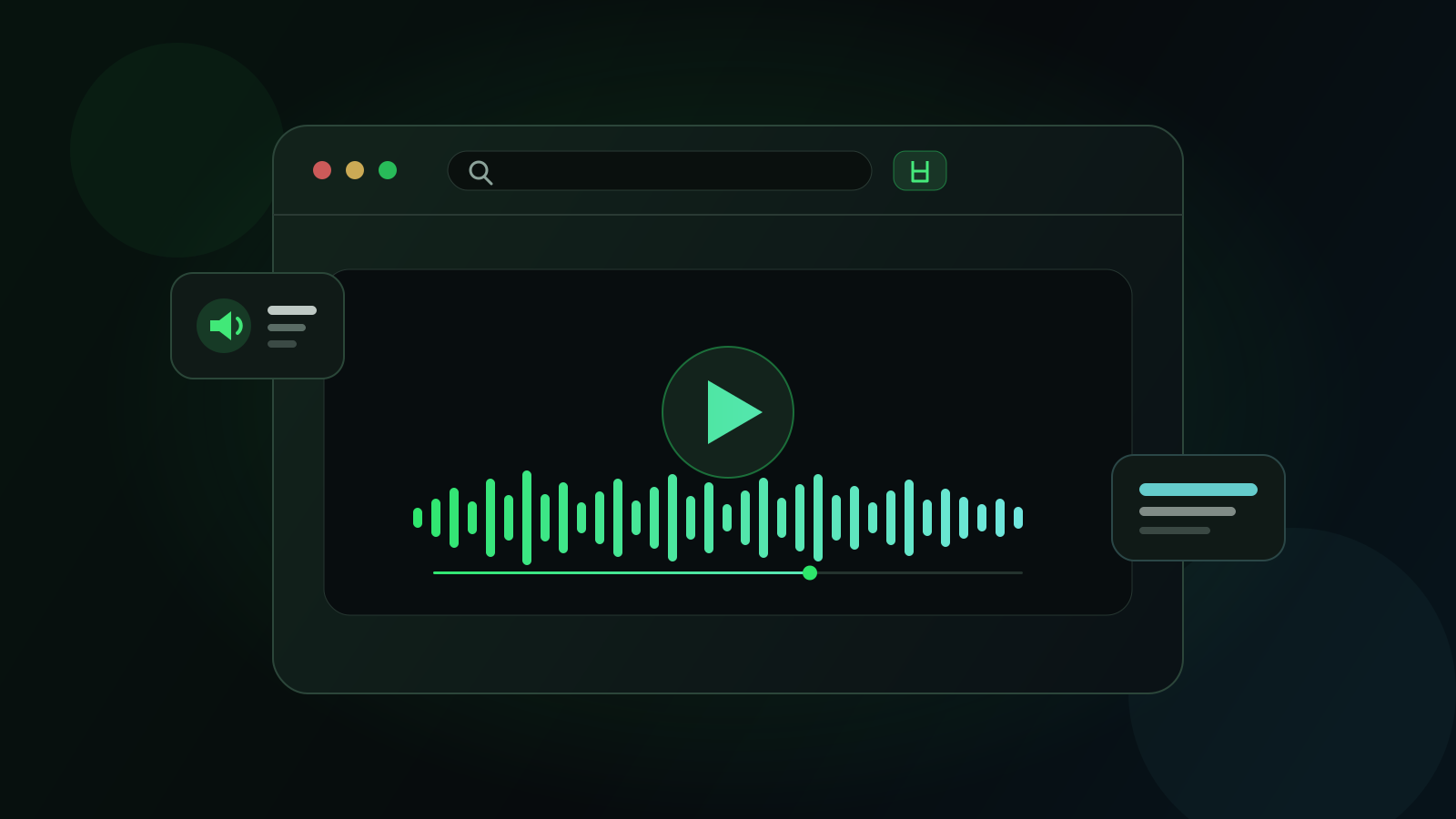
A good real-time dubbing extension should let you keep watching while a translated voice follows the video. The difficult part is not finding a product that says “AI dubbing”; it is choosing the right technical approach for the video, your privacy expectations and the amount of delay you can accept.
Start with the simplest option. A video may already contain your language as an audio track, Chrome can translate captions without speaking them, and browser extensions can build a spoken translation from captions or captured audio. This guide explains those differences and gives you a repeatable way to evaluate them.
Check the player before installing anything
On YouTube, open the player settings and look for Audio track. If the creator or YouTube has made your language available, selecting that track usually gives the cleanest synchronization. The option only appears when an alternative track exists for that particular video.
Chrome Live Translate solves a different problem: it generates and translates captions. Google documents it as text displayed in the Live Caption bubble, not as a translated voice mixed with the video. If reading is enough, the built-in feature may be all you need; if you want to listen, you need an existing audio track or a dubbing tool.
Understand what the extension is actually processing
A subtitle-first extension reads timed captions, rebuilds complete sentences, translates them and asks a speech engine to speak at the right moment. This can be efficient and private, but it needs usable captions. Local voice quality and the languages available vary by operating system because the browser exposes voices installed on the device.
An audio-first service captures the sound of the tab, transcribes speech, translates it and generates new audio. That approach can work when captions are missing, but it normally requires cloud processing, adds latency and may be metered. Livdub, for example, describes a tab-audio workflow using the user’s own Gemini API key; DubTab describes live speech translation with dubbed audio and subtitles.
Neither approach is automatically better. Caption-first is a strong default for recorded, subtitled videos. Audio-first is useful for live streams or missing captions. File-based creator tools are a third category: they render a new asset, whereas a viewing extension usually adds audio during playback.
Compare the main options
Use this table to choose a workflow, not to declare a universal winner. Features and limits can change, so verify the current product page before paying or granting permissions.
| Option | Spoken translation | Input | Processing | Best fit |
|---|---|---|---|---|
| Existing YouTube audio track | Yes | Publisher-provided track | YouTube | Best first choice when your language is available |
| Chrome Live Translate | No, translated captions | Media audio | Local captioning; captions are sent to Google for translation | Reading translated text across Chrome |
| Voxylio local mode | Yes | Usable video captions | On-device translation and system voice | Subtitled videos with low cloud dependence |
| Voxylio Pro beta | Yes | Captions, or beta live transcription | Cloud features; local fallback except for transcription | Contextual translation and videos without captions |
| Livdub | Yes | Tab audio | Gemini through the user’s API key | Live audio-first dubbing |
| DubTab | Yes | Tab speech | Cloud AI service | Live dubbing with translated subtitles |
Test the experience, not just the feature list
Try the same two-minute passage with every candidate. Include names, numbers and a technical term, then pause, seek backward and change playback speed. A useful extension should not repeat stale sentences after a seek, should recover after a pause and should let you balance the original audio against the translated voice.
Check the exact permissions and privacy explanation. Determine whether captions, audio or transcripts leave the device, who receives them and whether history is stored. “Local” should describe a specific processing path, not the entire product: sign-in, billing and optional cloud features can still use servers.
- Latency. A short offset is normal; judge whether it stays stable over a long video.
- Voice availability. Confirm that your target language has a usable voice on your actual computer.
- Terminology. Test proper nouns and domain vocabulary instead of relying on a generic demo.
- Playback control. Pause, seek and change speed to expose queue and synchronization problems.
- Output. Check whether you need live listening, subtitles, a transcript or a rendered media file.
When Voxylio is the right fit
Voxylio’s local path is designed for viewers who already have usable captions and want to hear them as synchronized speech. Enable captions in the player, choose a target language and an installed voice, then start dubbing. The original audio can remain audible at a lower level so music and ambience are not completely lost.
If no captions are available, live transcription is a Pro beta feature rather than a guarantee of the free local path. Contextual translation and neural voices are also optional Pro capabilities. Voxylio follows the video during playback; it does not export a newly rendered dubbed MP4.
- 1Install. Add Voxylio from its official Chrome Web Store listing.
- 2Prepare. Open the video and enable its captions when they exist.
- 3Choose. Select the target language, voice, speed and original-audio mix.
- 4Verify. Play, pause and seek once before settling into a long video.
Choose according to the video in front of you
Use an existing audio track when it is available. Use Chrome Live Translate when translated text is enough. Choose subtitle-first local dubbing for captioned videos when low cloud dependence matters, and choose audio-first transcription when the content has no reliable captions or is genuinely live.
Be cautious with claims such as “any video”, “zero latency” or “fully offline”. Player restrictions, missing captions, speech pace, network conditions and installed voices all affect the result. The best extension is the one that states those boundaries clearly and performs reliably on the sites you actually use.
Frequently asked questions
Does Chrome Live Translate speak the translation?
Google documents Live Translate as translated captions displayed in Chrome. For spoken translation, use an available audio track or a dubbing extension.
Can a Chrome extension dub every website?
Not reliably. Access depends on the player, captions or tab audio, site restrictions and the extension’s supported workflow.
Can Voxylio dub a video without subtitles?
The local path requires usable captions. Live transcription for videos without captions is available as a Pro beta feature.
Why do local voices differ between computers?
Browsers expose voices installed or provided by the operating system, so language coverage and quality vary by device.
Can Voxylio export a dubbed MP4?
No. Voxylio adds synchronized speech while the video plays; it is not currently a video-rendering or MP4-export tool.
Primary sources
Try it on your next video
Hear the video in your language.
Install Voxylio, choose a language and start dubbing directly in your browser. No video download required.