How to Translate English Videos into Spanish with Voice in Chrome
Learn how to hear an English video in Spanish in Chrome, using an existing Spanish audio track when available or real-time dubbing from usable captions.

Leonel Ngoya
Founder of Voxylio
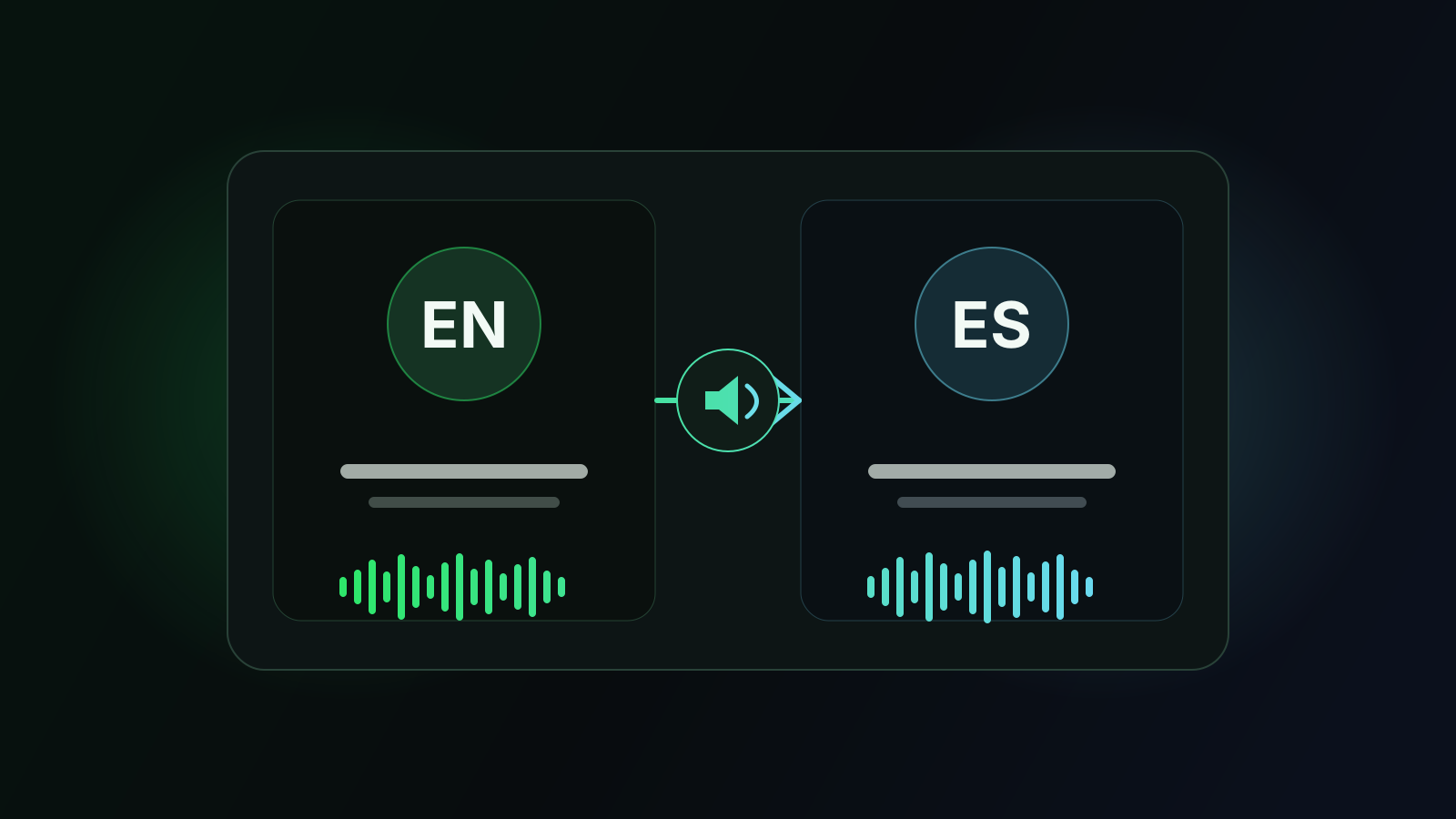
If you can follow written Spanish more easily than spoken English—or would rather keep your eyes on the video—real-time dubbing can make tutorials, interviews, courses, and entertainment much easier to understand. In Chrome, the quickest route is not always translation: first check whether the video publisher already provides a Spanish audio track.
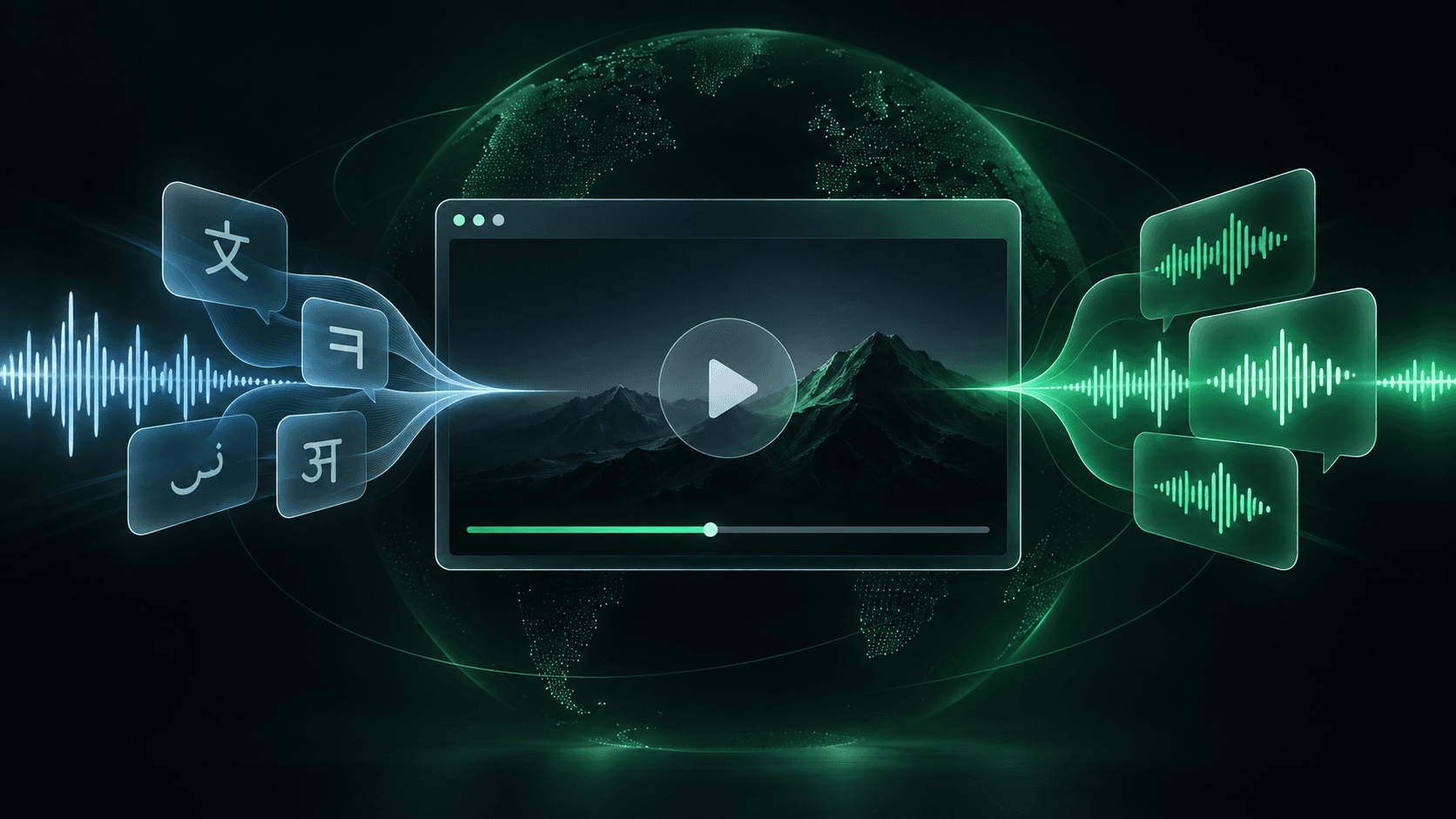
When no Spanish track exists, Voxylio can read usable captions, rebuild complete sentences, translate them into Spanish, and speak the result over the playing video. The original sound is lowered while the translated voice speaks, so music and background sound remain audible.
First, check for an official Spanish audio track
Open the player's settings and look for Audio, Language, Dubbed audio, or an equivalent menu. If Spanish is available, use it first: an official track normally preserves the actors' timing, mixing, and pronunciation better than live translation.
Do not confuse the subtitle menu with the audio menu. Spanish subtitles change the text you read; a Spanish audio track changes the voice you hear. If the publisher offers only English audio, then real-time browser dubbing becomes useful.
What local dubbing needs to work
Voxylio's local mode depends on a usable caption track that the browser can access. Human-made captions usually produce the best result; automatic captions can also work, but incomplete punctuation, rapidly revised lines, or missing text may reduce translation quality.
Local translation and speech run with capabilities available on the device. The Spanish voices offered—and how natural they sound—therefore vary by operating system, browser version, installed voice packs, and device. Seeing a different voice list on Windows, macOS, or another computer is normal.
Translate and dub the video in Chrome, step by step
Use the following order so Voxylio can identify the correct player and prepare speech before the next sentence begins.
- 1Install Voxylio. Add the extension to Chrome, pin it if you want quick access, and open the page containing the video.
- 2Start the video. Press play and enable the video's English captions when the player provides them.
- 3Choose Spanish. Open Voxylio, select Spanish as the target language, and choose one of the Spanish voices available on your device.
- 4Start dubbing. Launch dubbing and let the video play for a few seconds while the first complete caption sentences are prepared.
- 5Adjust the mix. Set the translated voice and original-video volume so speech is clear without losing useful music or sound effects.
Choose a clearer Spanish voice and keep it synchronized
Preview the available voices and favor one whose regional accent and pacing match your preference. A voice marked for Spain may sound different from one intended for Latin America; availability is controlled by the device, not by the video website.
Voxylio follows pause, resume, seeking, and playback speed, but live dubbing still needs a small preparation window. If speech starts falling behind, return to normal playback speed, allow captions to stabilize, or choose a slightly faster voice where the system offers rate control.
What happens when the video has no usable subtitles
Local mode cannot translate speech it cannot first obtain as text. If the video has no accessible caption track—or the website draws captions inside a canvas—the normal local pipeline has nothing reliable to translate.
Live transcription for videos without subtitles is a Pro beta feature. It transcribes the incoming audio before translation and voice generation, so it uses an online service and may introduce more latency than caption-based dubbing. Voxylio plays the Spanish voice over the current video; it does not render or export a newly dubbed MP4 file.
Troubleshooting common problems
Most failures come from the selected track, the player's caption implementation, or the voices installed on the device. Check these points before restarting everything.
- No video is detected. Start playback, click the intended player, reopen Voxylio, and check that the site is supported or exposes an accessible HTML5 video.
- No captions are found. Enable English captions in the player. If none exist or they remain inaccessible, use Pro beta transcription when available.
- The voice is still English. Confirm that Spanish is the target language and select a voice whose language code begins with es.
- The voice sounds robotic. Try another installed Spanish voice or add a higher-quality system voice pack, then reload Chrome.
- Speech repeats or lags after seeking. Pause briefly, seek once to the intended position, and resume so pending caption and speech work can be rebuilt from the new timestamp.
Frequently asked questions
Can Chrome translate an English video's voice into Spanish?
Chrome can provide caption and translation features in some environments. Voxylio adds spoken Spanish dubbing by translating usable captions and synthesizing a voice over the video.
Do I need English subtitles?
For local mode, yes: Voxylio needs a usable caption track. A video without accessible subtitles requires the Pro beta transcription step.
Why are the Spanish voices different on another computer?
Local voices come from the operating system and browser. Installed language packs, OS version, and device determine which voices are available.
Does Voxylio replace the original audio?
It overlays the Spanish voice and automatically lowers the original audio while the translation is spoken; it does not permanently alter the source video.
Can I download the dubbed video as an MP4?
No. Voxylio is designed for live viewing in the browser and does not currently render or export a new MP4 file.
Primary sources
Try it on your next video
Hear the video in your language.
Install Voxylio, choose a language and start dubbing directly in your browser. No video download required.