How to Translate Online Course Videos with Voice
A practical guide to translating online course videos with spoken dubbing: checking captions, choosing a clear voice, and knowing which Voxylio plan covers course platforms.

Leonel Ngoya
Founder of Voxylio
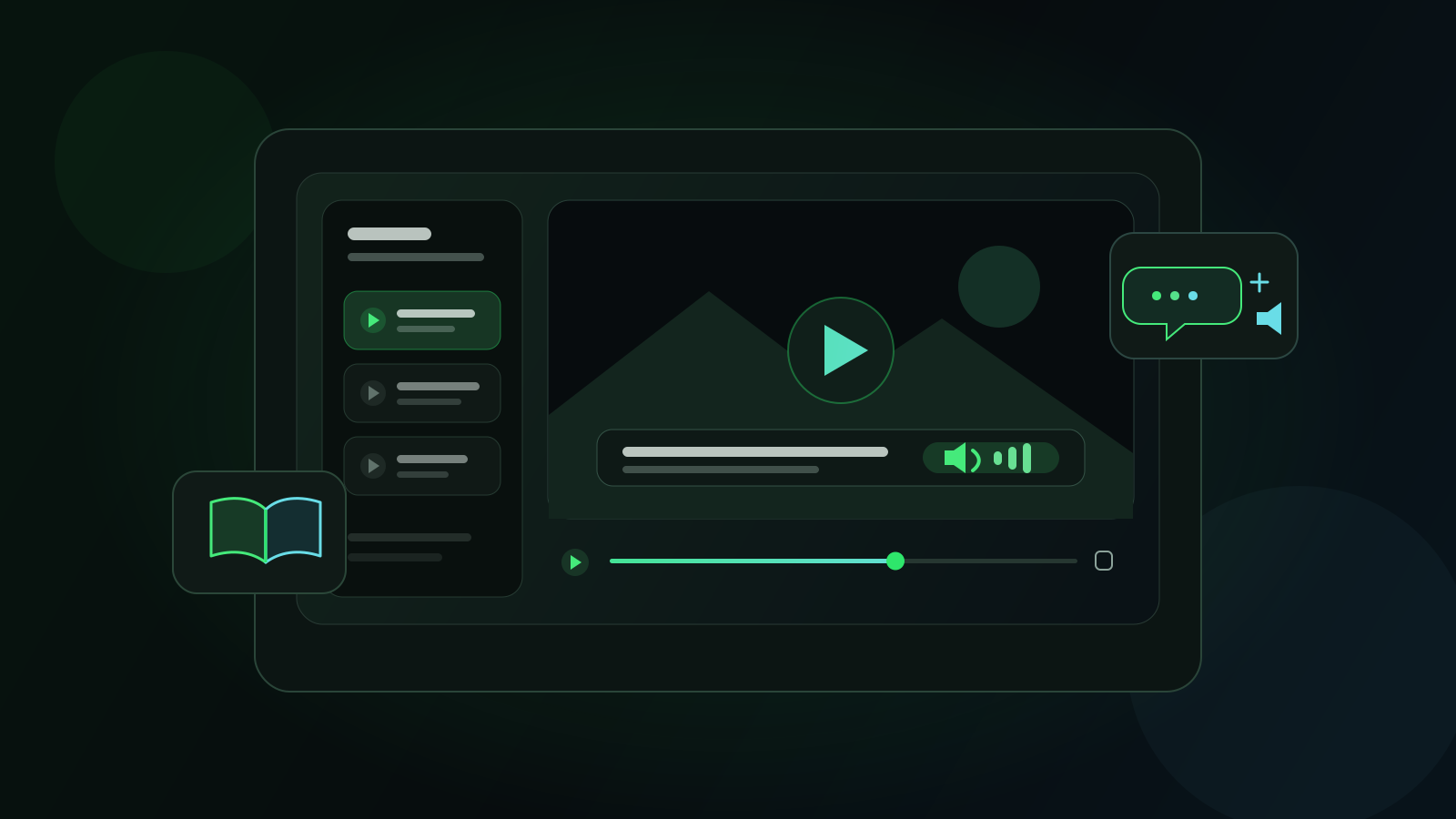
Translated subtitles can make a course understandable, but they also force you to look away from the interface, code editor, diagram, or physical demonstration the instructor is explaining. Spoken translation lets you keep your attention on the lesson while still using captions to verify an important term.
The result depends on the source. Before starting any dubbing tool, check whether the course already offers an audio track in your language and whether its player exposes usable captions or a transcript. This guide explains Voxylio’s caption-first workflow, the plan that course platforms require, and the current limits.
Check the course player before translating
First, look for an official audio or language menu. If the publisher provides a professionally dubbed track in your language, use it: it will normally have the best timing and mix. Then check the captions separately, because an audio track, subtitles, and a transcript are three different features.
Udemy’s course player can show the complete lecture transcript when the course provides one, and Udemy generates captions automatically for many courses taught in English, French, German, Italian, Japanese, Spanish and Portuguese. Voxylio reads Udemy’s captions directly and loads the lecture’s whole caption track upfront; it also supports the captions of LinkedIn Learning, Skillshare and edX. On other course platforms, a visible caption button is not enough by itself: dubbing works only when the player exposes a timed subtitle track or captions the extension can read.
Why a voice can help you follow a demonstration
In a lecture, reading translated text may be comfortable. In a software tutorial, design walkthrough, laboratory demonstration, or exercise correction, your eyes are already needed elsewhere. A translated voice reduces the constant switch between the subtitles and the part of the screen where the action happens.
Keep captions visible when accuracy matters. They are useful for names, commands, formulas, and unfamiliar vocabulary, while the voice carries the explanation. Spoken translation is an additional way to follow the lesson, not a replacement for the original course materials.
What Voxylio needs to work
Voxylio needs an accessible timed caption track. WebVTT is one common Web format for cues with text and timing, but players may expose captions in other ways, including text displayed in the page that the extension can read. If a site paints text inside the video image, hides its data, or provides no captions, there is no reliable text to translate.
In Chrome, the translation itself runs on your device with Chrome’s built-in Translator API (Chrome 138 or later on desktop), with an online fallback for subtitle sentences when it is not available. The translated speech uses voices available through the browser and operating system, so language coverage, accent, naturalness, and voice names differ between macOS, Windows, ChromeOS, and installed voice packs. Test the intended language on the actual device before a long lesson.
Course platforms and your Voxylio plan
Voxylio requires a free account. On the day you sign up, every supported site is unlocked, so you can test dubbing on your own course before deciding anything.
After that first day, the free plan covers YouTube, Netflix, Prime Video, Disney+ and Twitch, with a few free dubbing minutes every day. Course platforms such as Udemy, Coursera, LinkedIn Learning, Skillshare and edX are not part of the free plan: they require Pro, which unlocks every supported site with no daily limit, or Lifetime, which gives the same access for a single payment. Current prices are listed on the Voxylio pricing page.
Dub an online course with Voxylio, step by step
Start with a short lecture that has captions. Once the workflow is stable, use the same settings for the rest of the course.
- 1Prepare the player. Open the lesson, start playback, and enable the source-language captions or transcript provided by the course.
- 2Open Voxylio. Sign in if you have not already, select the active course video, and confirm that the extension detects usable subtitle text.
- 3Choose the output. Select your target language and preview an available voice before starting the full lesson.
- 4Start dubbing. Let a few complete cues load, then balance the translated voice against the original instructor audio.
- 5Test the controls. Pause, resume, and seek once to confirm that the voice follows the video before settling into the course.
Tune the voice, vocabulary, and playback speed
Choose a voice whose language and regional accent match the translation you want. If a voice sounds unclear, try another installed voice before changing the video speed. Long translated sentences sometimes need slightly more time than the source, so normal playback speed is the safest starting point.
Test a passage containing the course’s key vocabulary, proper names, numbers, and commands. The output can only be as reliable as the source captions: incorrect terminology or missing punctuation can lead to awkward phrasing. Keep the original captions available so you can verify critical terms without interrupting the lesson.
Know the limits before a long course
Voxylio cannot dub a lesson that has no accessible subtitles: it translates caption text and does not transcribe audio. On platforms without dedicated support, dubbing depends on the player exposing a compatible track, even when captions are visible to the viewer.
Voxylio adds translated speech during playback. It does not render, download, or export a newly dubbed MP4. Site restrictions, caption quality, very fast speech, seeking, and the voices installed on the device can all affect the experience, so validate one representative lesson before relying on it for an entire course.
Frequently asked questions
Does Voxylio work on every online course platform?
No universal guarantee is possible. Voxylio reads the captions of Udemy, LinkedIn Learning, Skillshare and edX, and works on other platforms when the player exposes a usable timed caption track. After the first day, course platforms require Pro or Lifetime.
Do I need subtitles to translate a course with voice?
Yes. Voxylio translates the course’s captions; a lesson without accessible subtitles cannot be dubbed, because Voxylio does not transcribe audio.
Can I use Voxylio on Udemy with the free plan?
Only on the day you create your free account, when every supported site is unlocked. After that, the free plan covers YouTube, Netflix, Prime Video, Disney+ and Twitch with a daily free allowance, and course platforms such as Udemy require Pro or Lifetime.
Why are the available voices different on another computer?
Local voices come from the browser, operating system, and installed language packs, so their names, accents, and quality vary by device.
Can I keep the original instructor audio?
Yes. You can keep the original audio audible at a lower level while the translated voice speaks, which helps preserve music, effects, and vocal context.
Can I export the translated course as an MP4?
No. Voxylio provides spoken translation during playback and does not currently render or export a new video file.
Primary sources
- Udemy Support — Course Player
- Udemy Support — How to use the Course Player and start your course
- W3C — WebVTT: The Web Video Text Tracks Format
- Chrome for Developers — chrome.tts API
- Google Chrome Help — Manage captions and translations
- Chrome Web Store — Voxylio
- Udemy Support — Instructors: Auto-generated subtitles FAQ
- Chrome for Developers — Translator API
- Voxylio — Pricing
- Voxylio — Supported sites
Try it on your next video
Hear the video in your language.
Install Voxylio, choose a language and start dubbing directly in your browser. No video download required.
 Add to Chrome